
This article provides details of the features included in the Flip Add-in
Contents
What is Flip?
Flip is an Excel add-in that lets you:
- Store your favourite custom number formats in one place.
- Reuse them across workbooks.
- Apply them with a single click or keyboard shortcut.
- Apply up to three formats for each each format name.
This means you don’t need to recreate the same formats again and again in different workbooks.
Core concepts
Before we look at individual buttons, let’s define a few terms you’ll see throughout the add-in.
Format name
Each entry in the Flip drop-down is a format name.
You can choose the name. It’s just a label so you can recognise what the formats do.
Formats
Each format name can store up to three number formats:
- Format 1 – applied on the first click
- Format 2 – applied on the second click
- Format 3 – applied on the third click
- Clicking again loops back to Format 1.
The formats don’t have to be related, but in practice they often are.
Remember: A number format is just a text code that tells Excel how to display a value; it never changes the value itself.
The interface
The Flip interface has 4 main areas:

Format selector
The format selector is a dropdown list which includes all the format names.
Click the arrow to open the list.

Choose the format name you want to work with.
Hovering over a name shows the underlying number formats.
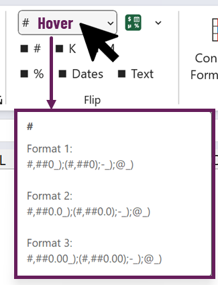
Whatever name is selected here is the one all the menu actions refer to (Rename, Delete, Position, etc.).
Flip button
The flip button applies the selected format name to the selected cells, chart elements, table column or PivotTable fields.
Clicking the button multiple times will cycle through all the formats assigned to the name.
Quick access area
Your six most important format names can be pinned to the quick access area.
- Each position can be linked to one format name.
- Each position can have its own keyboard shortcut.
There are 6 Quick Access positions (1–6), shown in two rows of three.
Flip menu
Clicking the arrow next to the Flip button opens the menu of options for managing all aspects of the add-in.
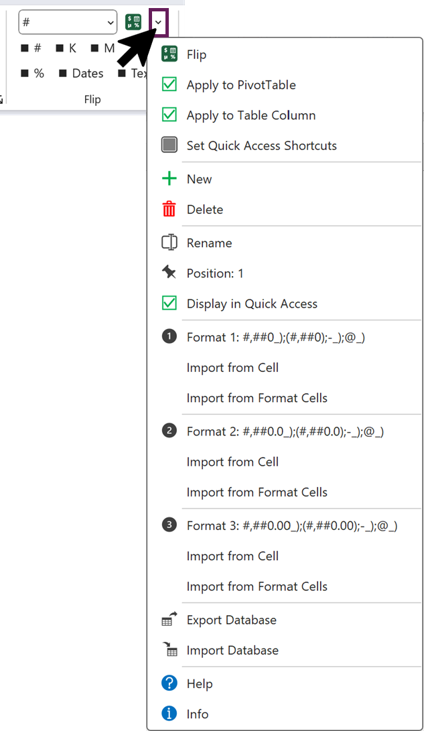
Apply to PivotTable (checkbox)
If checked, Flip applies number formats to the selected PivotTable field.
If unchecked, Flip applies the number format to the selected cells.
Apply to Table Column (checkbox)
If checked, Flip applies the format to the whole column of a selected table.
If unchecked, Flip applies the number format to the selected cells.
Set Quick Access Shortcuts
Provides the ability to apply keyboard shortcuts to the 6 quick access positions.
Positions 1–3 are the first row; 4–6 are the second row.
NOTES:
- Shortcuts are assigned to positions, not specific format names.
- If you later change which names are in the lowest 6 positions, the buttons that appear in the Quick Access area may change, but the shortcut still trigger the position.
New
Creates a new format name with a default name. Use the Rename option to enter your preferred name. The new name appears in the drop-down list.
Delete
Removes the currently selected format name from the drop down list and quick access area (if it was displayed there).
This does not affect cell formatting already applied in your workbooks; it only removes the entry from Flip’s database.
Rename
Renames the selected format.
Position n
Displays the current position of the selected name in the drop down and quick access area. Clicking the button provides the ability to move the position.
The 6 lowest position numbers that also have Display in Quick Access checked are the ones which appear as quick access buttons.
Display in Quick Access (checkbox)
If checked, the format becomes eligible for one of the 6 quick access buttons. If it’s among the 6 lowest position numbers with this box checked, it will show as a Quick Access button.
If unchecked, the format name is only available from the drop-down.
Format 1, Format 2, Format 3
This section defines the number formats to assingn to the format name.
For each format name there are up to three underlying number formats. In the menu these appear as:
- Format 1: [format code]
- Format 2: [format code]
- Format 3: [format code]
It is not essential to use all 3 formats, any unused format is ignored.
There are 3 ways to insert formats:
- Clicking the format allows for direct text entry.
- Import from Cell imports the number format from the selected cell
- Import from Format Cells a format from the Format cell dialog box.
Import Database & Export Database
Flip stores the formats in an internal database. You can export and import this to:
- Back up your formats.
- Move them to another computer.
- Upgrade to a new version of Flip without losing your library.
Exporting creates a new workbook with a table of the current database.
To import, follow the on-screen instructions to ensure the import is successful.
Help
Opens the online help pages for Flip in your browser.
Info
Shows information about the current version of Flip.
Installing Flip
Flip is a macro-enabled Excel Add-in. Provided your organization allows VBA macros, the add-in can usually be installed without admin permissions.
Follow this link for the instructions to install Flip: https://exceloffthegrid.com/flip-installation-guide/